Submit to enterprise clients in the format they ask for.
Enterprise clients want profiles in their own tracker, with every detail filled and the screening on record. RecruiterDesk maps each client's spreadsheet once, checks that a profile is complete before it goes out, records the candidate's consent for you to represent them, and downloads the submission in the client's exact column layout.
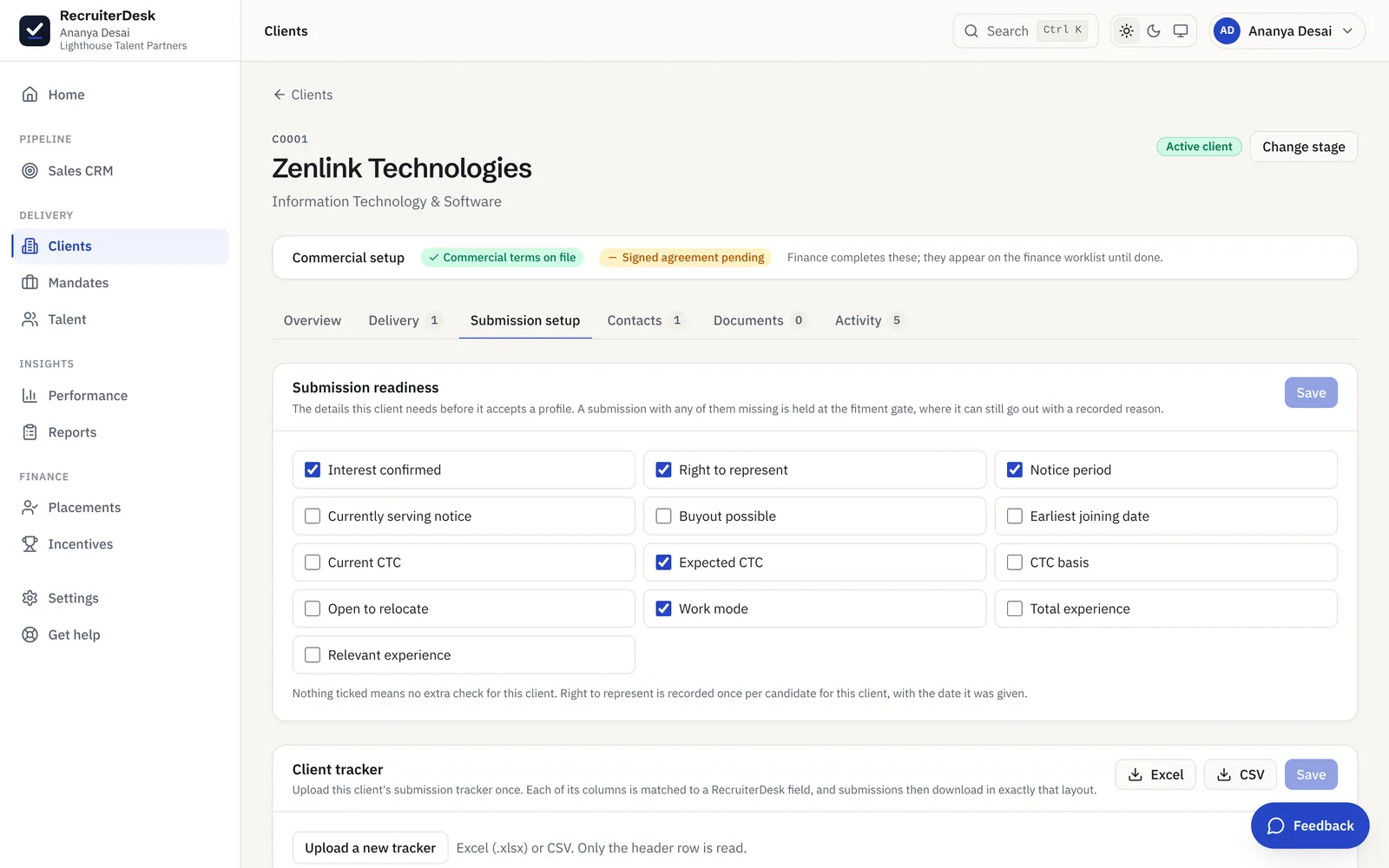
From the client's tracker to a complete submission, in three steps.
Map the client tracker once
Upload the client's Excel or CSV submission tracker on their record. RecruiterDesk reads its column headers, and you map each column to a field: candidate name, contact, current and expected CTC, notice period, experience, assessment ratings, recommendation, the client's requirement ID and so on.
Gate each profile on what they need
Tick the details this client insists on before a profile goes out. When a submission is held, a popup over the pipeline asks for exactly what is missing, with Save and submit. The gate also flags a person already submitted to this client, and can be overridden only with a recorded reason.
Download in their exact layout
Export the submissions as an Excel (.xlsx) or CSV file in the client's own column order, for one mandate or across every mandate for that client, and send the file they asked for.
Everything the client checks, in place before you send.
The client's own tracker
Each client keeps its own column layout, mapped once. The download fills those columns from your records, so nobody retypes a profile into a vendor sheet before every submission.
A readiness checklist per client
Choose what must be complete: interest confirmed, right to represent, notice period, currently serving notice, buyout possible, earliest joining date, current and expected CTC with its basis (such as fixed or total), relocation, work mode, and total and relevant experience.
Right to represent, on record
The candidate's consent for you to represent them to a specific client is recorded once per client, with the date it was given, and covers that person's other roles with the same client.
Duplicate submission check
Before a profile goes out, the gate flags when the same person has already been submitted to the same client, which protects the agency when ownership of a candidate is disputed.
An L1 screening scorecard
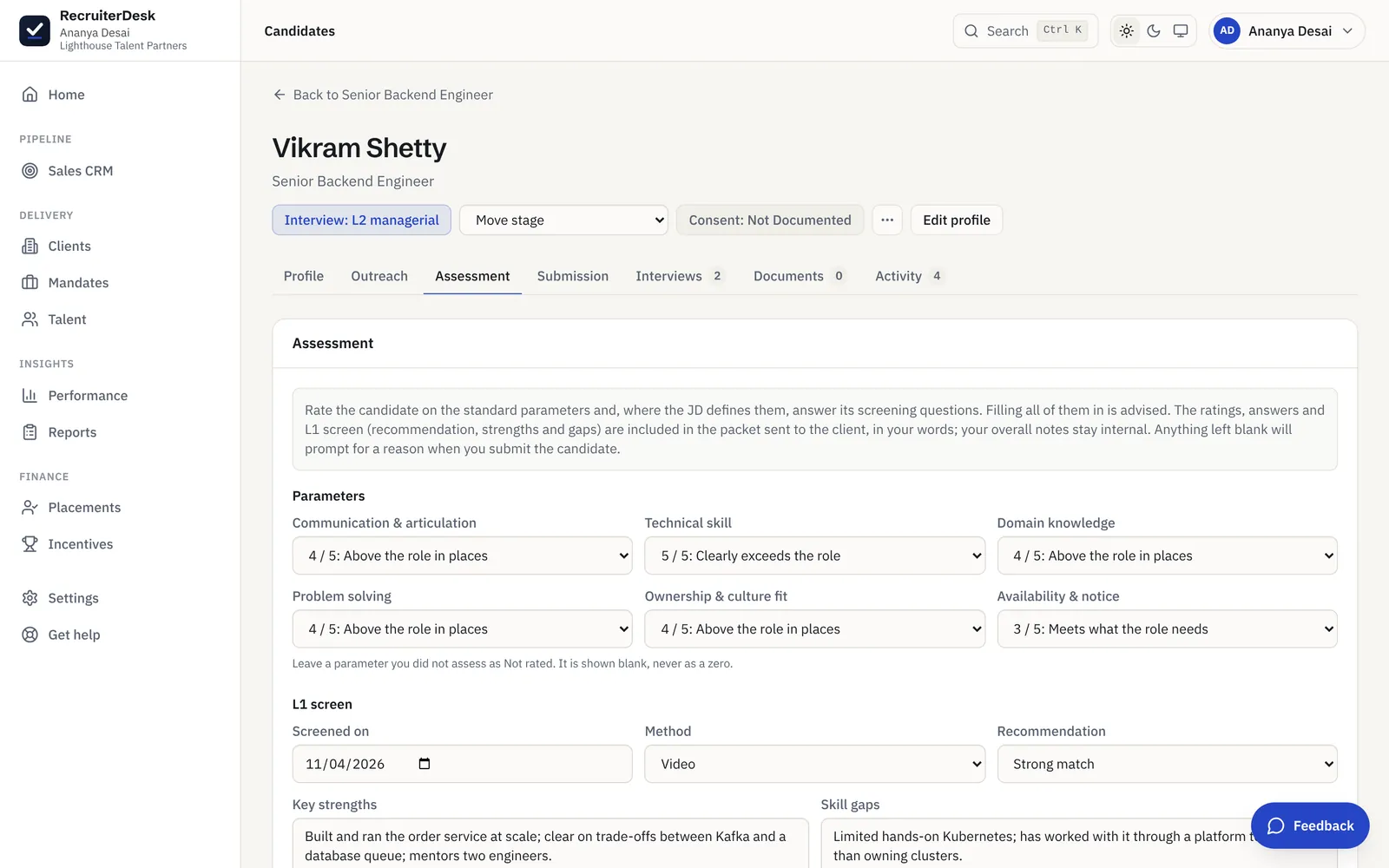
The recruiter assessment records the screen date and method, key strengths, skill gaps and a recommendation, with each criterion rated on an anchored 1 to 5 scale.
Overrides with a reason
A client deadline sometimes wins. The gate can still be overridden, as it always could, but the reason is recorded against the submission rather than lost in a chat.
A screening the client can read, not a gut feel.
The recruiter assessment records when and how you screened (phone, video, in person or a test), the key strengths, the skill gaps and a recommendation. Ratings sit on an anchored 1 to 5 scale where every score has a written meaning, and a criterion you did not assess stays blank instead of being scored zero. The scorecard travels with the submission, in your own words, while your overall notes stay internal.
- Strong match, Match, Partial match, Not recommended or Assessment incomplete
- Anchored 1 to 5 ratings, with blanks for criteria not assessed
- Ratings and recommendation can map into the client's tracker
Their rounds, their demands, their deadlines.
Enterprise clients run their own interview rounds, send demand in bulk and hold vendors to a turnaround. RecruiterDesk carries all three per client, while the standard pipeline stages stay fixed, so your reports stay comparable across every client you serve.
Client interview rounds
Define named, ordered rounds per client, such as L1 technical, L2 managerial and client HR. Moving a candidate to Interview offers the first round, Next round moves them on, and the stage shows the round. Set the client's interview availability beside them, so a candidate's self-schedule link fills from the client's hours in a tap.
Bulk mandate intake
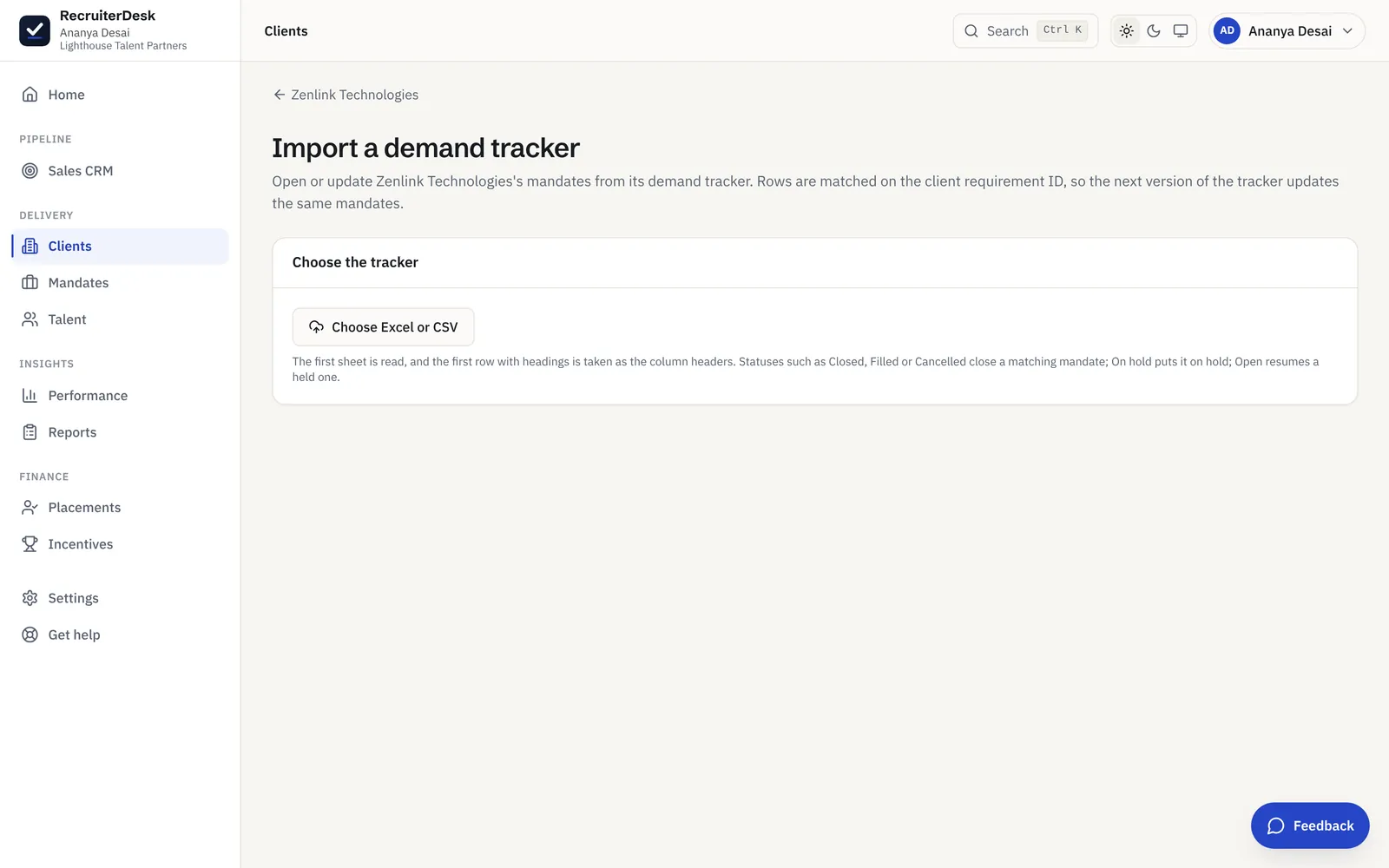
Import a client's demand tracker (Excel or CSV) into mandates in one go, keeping the client's requirement ID on each. A later re-import adds new demands, updates existing ones and moves demands marked closed or on hold.
Turnaround targets
Record a turnaround target on a mandate, for example first profiles within 2 working days, counted Monday to Friday. The due-by date shows on the mandate list and on Home.
Met versus missed, by client
A report shows turnaround targets met and missed for each client, so you can see where the desk keeps its promises and where it slips before the client points it out.
A mandate with several openings also moves to Filled on its own when its last seat is placed, and the owner can reopen it if the client adds a seat.
Open the client's demand tracker as mandates.
Enterprise clients send requirements as a sheet. Import it from the client record, as Excel or CSV, and each row opens or updates a mandate. Rows are matched on the client's requirement ID, so the next version of the tracker updates the same mandates, and a status such as Closed, Filled or Cancelled closes the matching one, On hold holds it and Open resumes it.
- The client's requirement ID kept on each mandate
- Re-import to add, update, close or hold
- The first sheet and its header row are read
Vendor submissions, answered.
What is a vendor submission?
When an agency is empanelled as a vendor with an enterprise client, it usually submits candidates in a fixed format: a client-owned spreadsheet tracker with set columns such as current and expected CTC, notice period, experience, the screening ratings and the client's requirement ID. RecruiterDesk keeps that tracker on the client record, maps its columns to your candidate data once, and downloads every submission in that exact layout.
Can RecruiterDesk fill in our client's Excel submission tracker?
Yes. Upload the client's Excel or CSV tracker once. RecruiterDesk reads its column headers and you map each column to a RecruiterDesk field. From then on, submissions download as an Excel (.xlsx) or CSV file in that column layout, for a single mandate or across all of that client's mandates.
Does it fill a client's Word or PowerPoint CV summary template?
No. The client-format export is a spreadsheet, Excel or CSV, in the client's column layout. If a client also asks for a CV summary in their own Word or PowerPoint template, that is still prepared outside RecruiterDesk.
How does the readiness gate work?
For each client, you tick which details must be complete before a profile goes out, from interest confirmed and right to represent to notice period, joining date, CTC with its basis, relocation, work mode and experience. When a submission is held for missing details, a popup over the pipeline or the candidate record asks for exactly those and offers Save and submit, so you never leave the page. You can still override the gate, and the reason is recorded.
How is right to represent recorded?
Once per client, with the date and who recorded it. The record shows that this candidate agreed to be represented by your agency to this particular client and when, and it covers that person's other roles with the same client. The readiness gate can require it before a submission, and it also flags a person already submitted to the same client, which is the evidence an agency needs in an ownership dispute.
What goes into the L1 screening scorecard?
The screen date and method (phone, video, in person or a test), key strengths, skill gaps and a recommendation: Strong match, Match, Partial match, Not recommended or Assessment incomplete. Ratings use an anchored 1 to 5 scale where every score has a written meaning, and a criterion you did not assess stays blank rather than being scored zero. The scorecard travels with the submission.
Can each client have its own interview rounds?
Yes. Define named, ordered rounds on the client, for example L1 technical, L2 managerial and client HR, and every mandate for that client uses them. Moving a candidate to Interview offers "Interview: L1 technical" and so on, Next round moves them on, and scheduling an interview against a round moves the candidate to it. A candidate who withdraws or is rejected during a round keeps the round they left at. The standard pipeline stages stay the same for every client, so your reports compare like with like.
Do recruiters have to re-ask a candidate's notice and CTC for each client?
No. Details that belong to the person (serving notice and last working day, buyout, earliest joining date, CTC basis, openness to relocate and work mode) are kept on their profile and filled in when the same person is put forward for another mandate. Role-specific answers, such as interest in this role and relevant experience, stay with the role.
Does AI write what goes to the client?
No. Everything client-facing in the submission is the recruiter's own input: the details, the ratings, the L1 screen and the recommendation. AI only assists, with an optional drafted note that the recruiter edits before sending, and the recruiter has the final say on what reaches the client.
Is this a paid add-on?
No. The client-format export, the readiness gate, right-to-represent records, the screening scorecard, client interview rounds, demand tracker intake, turnaround targets and details carried between mandates are included in every plan, like every other feature.
The rest of the client-facing desk.
Client shortlist review
Share a shortlist on a no-login link and get a yes, maybe or pass on each candidate, back on the mandate.
Learn moreInterview scheduling
Book an interview against the client's round, or let the candidate pick a slot from a no-login link.
Learn moreCandidate history
Details the person gave on an earlier mandate fill in on the next one, and a past drop-out shows wherever they return.
Learn moreApplicant tracking system
Every open role on a pipeline, with stages that follow the client's interview rounds.
Learn moreSwitching recruitment software
Bring candidates in from an Excel or CSV export, with ready-made mappings for four common tools.
Learn moreFor agencies
A shared pipeline and sales CRM, team visibility, settlements and per-day billing for a boutique agency.
Learn more- 7-day free trial The whole product, no credit card and no setup call.
- One flat price Every feature included, no per-feature upsells or tiers.
- Your data is yours Export it or delete it whenever you want.
Send the next profile in the client's format.
Map one client's tracker, set what must be complete, and download your next submission in their layout. Free for 7 days, no card.
- Submissions in each client's Excel or CSV layout
- A readiness gate and dated right-to-represent records
- An L1 scorecard that travels with the profile
- Client interview rounds and turnaround targets